
Quick guide
- Put the sensor on and, if the sensor is a watch, switch on «Broadcast heart rate» on the watch.
- Open BioPulse and go to the Train tab.
- Choose Free Workout or Group Class.
- Tap Link Sensor.
- Wait for the sensor to show up under Nearby Sensors and tap the sensor.
- The chip turns to Connected with the sensor name. Tap Start Workout.
- The sensor stays in Saved sensors and in Settings → My Sensors: next time BioPulse recognises the sensor on its own.
What counts as «your own sensor»?
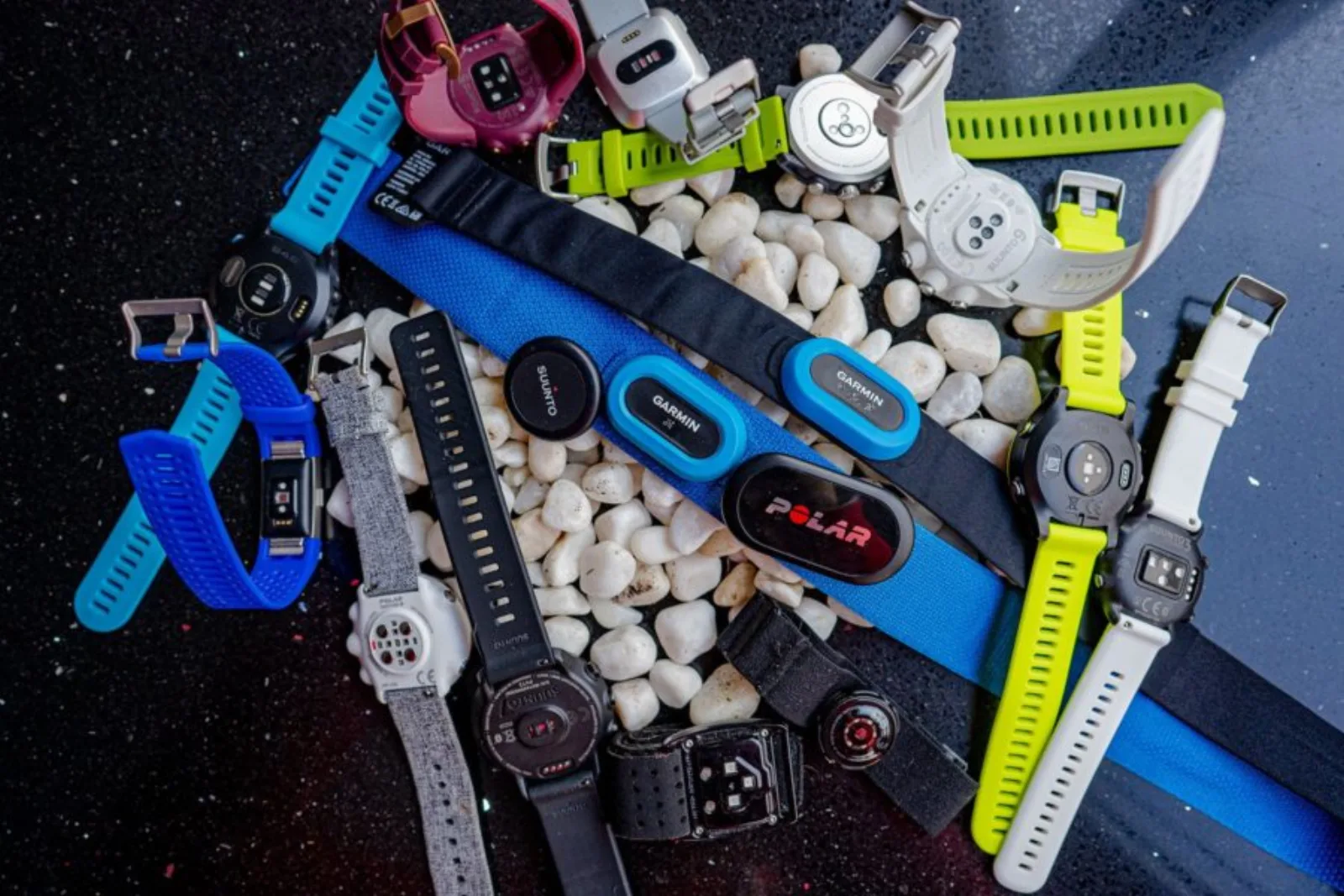
Any device that measures your heart rate and can send that heart rate over Bluetooth live: a chest strap, an armband sensor or a sports watch with broadcasting switched on. BioPulse connects to that device directly, without going through the brand's app and without waiting for the workout to finish.
That direct connection is what sets your own sensor apart from a sync: Apple Health and Health Connect bring the workout once the workout is already over, while a paired sensor measures while you train.
1 Which sensors work with BioPulse
BioPulse works with any device that publishes the standard Bluetooth heart rate service.
Any device that broadcasts heart rate openly over Bluetooth is compatible with BioPulse. Add your sensor from Settings → Sensors, or look for the sensor before starting your workout from the Train tab.
Chest strap and armband sensor brands
- Polar
- Garmin
- Wahoo
- Coospo
- Decathlon
- Magene
- Scosche
- Chileaf
 Polar
 Garmin
 Wahoo
 Coospo
 Decathlon
 Magene
 Scosche
 ChileafPolarGarminWahooCoospoDecathlonMageneScoscheChileaf
These brands are examples, not a closed list: every brand has dozens of models and new models come out every year. Practically any chest strap or armband sensor sold in the last decade broadcasts over Bluetooth, including the no-name brands on Amazon. On the box or on the product page, look for the words Bluetooth, BLE or Dual.
Watch brands that broadcast over Bluetooth
- Garmin
- Polar
- COROS
- Whoop
- Pixel Watch
- Fitbit
GarminPolar COROS
 Whoop
 Pixel Watch
 FitbitGarminPolarCOROSWhoopPixel WatchFitbit
Heads up: smartwatches do not broadcast heart rate automatically the way sensors do. That feature has to be switched on by hand from the watch or from its app. Go to section 3 to see, brand by brand, how to switch on heart rate broadcasting on your watch.
2 How to pair your sensor with BioPulse step by step
- Put the sensor on and switch on broadcasting if the sensor is a watch.
- Open the Train tab and choose Free Workout or Group Class.
- Tap Link Sensor.
- Tap the sensor when the sensor shows up under Nearby Sensors.
- Check that the chip says Connected and tap Start Workout.
- 1
Put the sensor on before opening BioPulse
A chest or armband sensor only broadcasts when the sensor detects skin. Off the wrist or off the chest, the sensor is asleep and does not show up in the search. If the sensor is a watch, switch on broadcasting first from the watch menu.
- 2
Open the Train tab and choose the type of workout
- Free Workout, to train at your own pace with any activity
- Group Class, to join a class at a BioPulse gym
- 3
Tap Link Sensor
In a free workout, the start card says «Place sensor on chest and tap Link sensor». In a group class, the equivalent screen is «Select a sensor to join this class».
- 4
Tap your sensor in the Nearby Sensors list
BioPulse lists the devices that are broadcasting right then. Sensors you have used before show up at the top, under Saved sensors, and new sensors show up below, under Nearby Sensors.
- 5
Confirm that the chip says Connected
On connecting, the chip at the top turns to Connected · sensor name and the beats start moving on screen. That movement is the proof that the signal is coming through live.
- 6
Tap Start Workout
BioPulse records the session reading heart rate beat by beat, without depending on the app of the sensor's brand.
If your sensor does not pair, go to the phone's Bluetooth settings and check whether the sensor is connected there. If the sensor shows up in the phone's Bluetooth settings, remove the sensor from those settings and pair the sensor from BioPulse.
3 How to switch on heart rate broadcasting on your watch
Every brand hides the broadcasting feature in a different corner of the menu. The feature is called «Broadcast heart rate», «HR Broadcast» or «Broadcast HR» depending on the brand.
A sports watch measures heart rate all day long, but a sports watch keeps that heart rate for the brand's own app. Bluetooth broadcasting is what opens that measurement to the rest of your devices: once broadcasting is on, the watch behaves exactly like a chest strap and BioPulse finds the watch in the nearby sensors list.
| Brand | Where the feature lives |
|---|---|
| Garmin | Hold MENU and go to Sensors & accessories → Wrist heart rate → Broadcast heart rate. On recent Forerunner and Venu watches the path is Health & wellness → Wrist heart rate → Broadcast heart rate. It is also in the controls menu, holding the top button. |
| Polar | Set per sport profile: switch on Heart rate visible to other devices in the profile you are going to use, from Polar Flow or from the watch itself. |
| Whoop | Whoop app → Device settings → Heart Rate Broadcast. The switch lives in the app, not on the band. |
| COROS | In the watch menu, System settings → HR broadcast. |
| Pixel Watch 2 or later | Swipe down to open quick settings and go to Connected Fitness → Connect. The first time you have to grant the extended device access. |
| Fitbit Charge 6 | Swipe down from the watch face and go to HR on equipment. Choose Share and then Start. |
A piece of history that still causes confusion with Garmin: until 2020, Garmin watches broadcast heart rate over ANT+ only, which phones do not read. Since then Garmin broadcasts over ANT+ and Bluetooth at the same time on the Descent, epix, fēnix, Forerunner, Instinct, Venu and vívoactive lines. A Garmin older than that update does broadcast, but not to a phone.
4 Which devices cannot broadcast heart rate over Bluetooth
The Apple Watch, the Oura ring, the Galaxy Watch, the Fitbits running Fitbit OS, the first-generation Pixel Watch and most Suunto watches and Xiaomi bands do not broadcast heart rate to other apps.
The devices on this list do not broadcast heart rate over Bluetooth, so neither BioPulse nor any other third-party app can read live heart rate from these devices.
If you own one of these devices, you will not be able to train live with that device from the BioPulse app, but once the workout is over you will be able to see your data in BioPulse, as long as the app of the device's manufacturer is synced with Apple Health or with Health Connect.
| Device | Why it does not broadcast | Can BioPulse import it? |
|---|---|---|
| Apple Watch (every model) | watchOS does not let the watch act as a Bluetooth peripheral. It is an Apple system restriction, not a pending feature. | Yes, through Apple Health. The Apple Watch writes to Health natively. |
| Oura ring (every generation) | Oura uses a proprietary Bluetooth protocol. The Oura ring reads third-party straps, but the Oura ring does not let anyone read the ring. | Yes, through both routes. The Oura app writes to Apple Health and to Health Connect, on by default since version 3.4. |
| Samsung Galaxy Watch (4, 5, 6, 7, 8 and Ultra) | Wear OS does not ship broadcasting as standard and Samsung has not added broadcasting. It takes third-party apps installed on the watch itself. | Yes, through Health Connect, via Samsung Health. |
| Fitbit running Fitbit OS (Versa, Sense, Charge 5 and earlier, Inspire, Luxe) | Fitbit OS does not implement the Bluetooth heart rate service. The exceptions are the Charge 6 and the Fitbit Air, which do broadcast. | Yes, through both routes, but the Apple Health one is recent: until August 2026 it took a paid middleman app. |
| First-generation Pixel Watch | Broadcasting arrived with the Pixel Watch 2. The original Pixel Watch never got it. | Yes, through both routes, via the Google Health app. |
| Xiaomi Smart Band and Mi Band | Xiaomi bands keep heart rate for the Mi Fitness app and do not publish it over Bluetooth. | Yes, through both routes, but it has to be switched on by hand in Mi Fitness → Profile → Third-party data. |
| Suunto, on most current models | Suunto does not include broadcasting in its recent range. Before giving up, look for «Broadcast» in the menu of your specific model. | Yes, through both routes, although the Suunto app only writes workouts, steps and heart rate: sleep and HRV stay out. |
Amazfit deserves a paragraph of its own because the answer depends on the model. The Amazfit Helio strap broadcasts with the standard Bluetooth protocol, and the Zepp OS watches accept external straps, but broadcasting from the watch itself is not documented consistently across the range. Look for «Broadcast heart rate» in the menu of your model before buying anything.
5 How to use your own sensor in a live class
In the Train tab, choose Group Class, tap Join and then Use my sensor instead of scanning the gym strap. BioPulse connects to your sensor and your heart rate shows up on the studio screen.
A live class needs heart rate beat by beat, and that data only arrives over Bluetooth. Neither Apple Health nor Health Connect works for the class: Apple Health and Health Connect hand over the workout once the workout is already finished. That is why the class asks for a sensor that broadcasts.
- 1
Open the Train tab and choose Group Class
BioPulse shows the available classes on the Select a Group Class screen, with the My Gyms, Nearby and All tabs. Tap Join on the class you are going to.
- 2
Choose Use my sensor
The «Select a sensor to join this class» screen offers two routes: scan the NFC tag on a gym strap, or use a sensor of your own that is already saved.
- 3
Pick the sensor from the list
Every saved sensor shows its status: Available, Connected, Not in range or Disconnected. Only sensors that are in range and switched on let you into the class.
- 4
If the sensor does not show up, tap Find New Sensors
BioPulse sweeps Bluetooth again. It is the button that solves most cases where a sensor is slow to wake up.
6 How to place the sensor so the reading is reliable
Place the strap just below the pecs, centred on the sternum, and wet the electrodes before putting the strap on.
Most odd readings —frozen heart rate, jumps of 40 beats, gaps in the middle of the session— are not a sensor fault: they are a contact fault. The app itself covers this in the placement guide, and the guide is worth reading once.
- Snug, not tight. The strap should sit firm but comfortable: just enough that the strap does not slide with movement.
- Wet the electrodes. The contacts on the inner face need moisture to read the electrical signal. On dry skin, the first few minutes give erratic data.
- Below the pecs, centred on the sternum. Higher or lower, the signal degrades.
- Rinse the strap after every use. Dried sweat on the electrodes is the number one cause of straps that «stop working» after a few months.
- Watch the battery. A low battery does not switch the strap off all at once: the strap starts losing the connection mid-session.
An armband sensor copes worse with strength work that contracts the forearm and better with lying-down positions. A chest strap is more accurate in intervals and sharp changes of pace. For high-intensity classes, the chest strap wins.
7 What to do if BioPulse cannot find your sensor
| What you see | What to do |
|---|---|
| «No sensor found» |
|
| «Bluetooth is Off» | Switch Bluetooth on from the phone settings or from the control centre. BioPulse cannot switch it on by itself. |
| The sensor shows up, but does not connect | The sensor is taken by another app or by the system Bluetooth settings. Close the app of the sensor's brand and remove the sensor from the phone's Bluetooth settings. |
| «This sensor is already in your saved sensors» | Look for the sensor under Saved sensors, further up on the same screen, instead of pairing the sensor again. |
| «No heart rate data for 30 seconds» | Contact or battery. Wet the electrodes, adjust the strap and change the battery if the battery is more than a year old. |
| The sensor only shows up sometimes | Bring the phone close to the sensor while pairing and move away from other switched-on sensors. A room with twenty straps broadcasting saturates the search. |
Frequently asked questions
Do I have to pair the sensor in the phone's Bluetooth settings?
No, and it is better not to. BioPulse connects to the sensor on its own. A sensor paired in the system settings is held by the system and can stop BioPulse from connecting to the sensor.
Can I use my strap and sync my watch as well?
Yes, and it is the recommended combination. The strap gives live heart rate during the class and the watch brings sleep and recovery through Apple Health or Health Connect. BioPulse does not duplicate the session.
How many sensors can I save?
As many as you like. Every saved sensor shows up in Settings → My Sensors, with an editable name, and BioPulse recognises any of them when you start a workout.
Why does my Apple Watch not show up in the nearby sensors list?
Because the Apple Watch does not broadcast heart rate over Bluetooth: watchOS does not let the watch act as a peripheral. On iPhone, BioPulse uses the Apple Watch through a different route, with the BioPulse app installed on the watch itself.
Does an ANT+ only sensor work?
No. ANT+ is a different protocol from Bluetooth and phones do not carry it. Look on the box or on the sensor's product page for the words «Bluetooth», «BLE» or «Dual».
Can I share a strap with someone else between classes?
Yes. The strap holds no identity: the strap only broadcasts beats. Whoever pairs the strap on their phone gets the strap's signal. Clean the electrodes between uses.
Does broadcasting from my watch eat a lot of battery?
Quite a bit. The watch keeps the optical sensor and a Bluetooth connection on for the whole session. For a one-hour class it is irrelevant; for a long ride, count on the extra drain.
Keep reading
The other ways to connect your gearDownload BioPulse and connect it in a minute
Free, for iPhone and Android. Link it today and your next session analyses itself.